

Step 4: Automated signing
Production deployment
For more information on achieving a production deployment with logging, metrics, and secure storage with backups, see the sub-pages of Virtual Signer Deployment.
To automate the signing process for your vaults, you use the Virtual Signer, a server-side Multi-Party Computation (MPC) application that runs within AMD SEV-SNP secure enclaves on AWS or self-hosted on bare metal hardware. It integrates with io.vault and io.network to perform Threshold Signature Scheme (TSS) operations just as a physical device would.
Prerequisites
Before running a Virtual Signer, you need:
- For AWS deployment: Use our CloudFormation template or CDK deployment (includes AMD SEV-SNP hardware security).
- For self-hosted deployment: A Linux server with Docker support (no special hardware required for development).
- The following outbound traffic allowed:
mqtt.vault.iofinnet.com(port 8084, TCP)api.iofinnet.com(port 443, TCP)- RPC URL to your Polygon node (usually port 8545, TCP)
1. Installing the Virtual Signer
This is a summary of the steps. For a full guide, see Virtual Signer Deployment.
AWS deployment
For AWS, use the CloudFormation template which automatically provisions the infrastructure with AMD SEV-SNP security.
Self-hosted deployment
For self-hosted deployment, connect to your server and pull the official Virtual Signer Docker image from Docker Hub, using the DOCKER_CONTENT_TRUST=1 flag to enforce signature verification:
DOCKER_CONTENT_TRUST=1 docker pull iofinnet/io-vault-virtual-signer:latestCreate a docker-compose.yml with the following minimal configuration:
version: "3.7"
services:
  virtual-signer-1:
    container_name: virtual-signer-1
    restart: unless-stopped
    image: iofinnet/io-vault-virtual-signer:latest
    logging:
      options:
        max-file: "5"
        max-size: "10m"
    ports:
      - 8181:8181
    environment:
      - VS_CONFIG_FILE=/etc/vsigner/config.json
      - VS_ENV=prod-sc-seed
      - VS_SCConfigRPCAddress="https://polygon-rpc.com/"
      - VS_SCConfigContractAddress="0x34a18dc10bD405435b22f70Ed8Df2D9E089A3813"
      - VS_MACAddressFilePath="./"
      - VS_WaitBetweenRetries=30
      - VS_MaxRetries=2880
      - SCConfigRPCAddress="https://polygon-rpc.com/"
      - SCConfigContractAddress="0x34a18dc10bD405435b22f70Ed8Df2D9E089A3813"
      - MACAddressFilePath="./"
      - WaitBetweenRetries=30
      - MaxRetries=2880
    volumes:
      - "./:/var/vsigner"
The following environment variables relate to our Virtual Signer app, which lets you configure, deploy, and manage Virtual Signers and transaction policies through a UI:
VS_SCConfigRPCAddress: EVM RPC URL used for interacting with the transaction-policy and configuration smart contracts on Polygon.VS_SCConfigContractAddress: Smart contract address of the config contract (all contents encrypted).
See the full environment variables list and the Virtual Signer app documentation for more detail.
Development mode
For local testing and development (not production), self-hosted deployments can run without hardware security by setting appropriate environment variables. AWS deployments always include AMD SEV-SNP hardware security.
Obtaining the hardware ID
Before using the Virtual Signer UI to complete setup, you need the MAC address of your newly deployed Virtual Signer. The app uses this to identify your instance.
docker logs $(docker ps | grep "virtual-signer-1" | awk '{print $1}') 2>&1 | grep VSMACAddress2. Completing setup
Navigate to the "Apps" section of the io.vault dashboard and load the "Virtual Signer". You will use this UI to generate API credentials for your Virtual Signer instance so it can connect to your account.
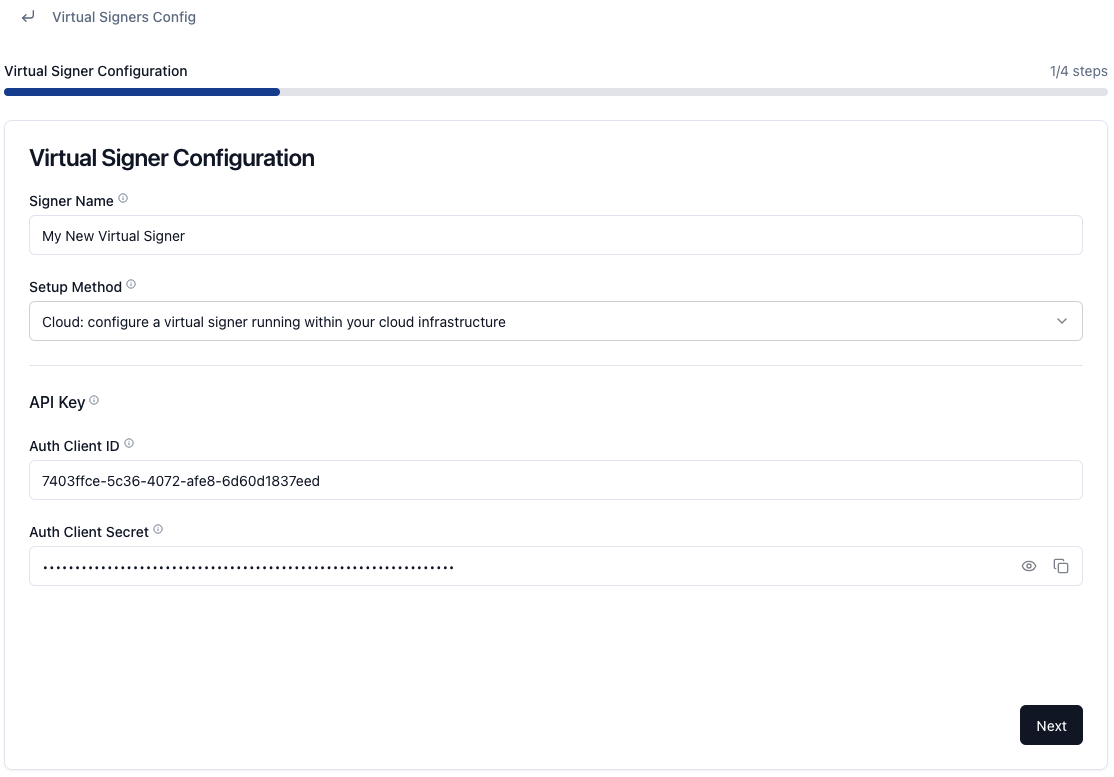
Configuration
After you generate your API credentials, specify initial configuration values for your Virtual Signer. These values, along with the API credentials, are encrypted and delivered to your Virtual Signer via the Polygon network.
- Hardware ID: The MAC address, a unique ID for your instance printed in the logs on initial start. Use
docker logs $(docker ps | grep "virtual-signer-1" | awk '{print $1}') 2>&1 | grep VSMACAddressto retrieve it. - Port: The port used for the approval API exposed by the Virtual Signer. We recommend keeping the default.
- Prometheus Port: The port used for Prometheus metric exports. We recommend keeping the default.
For the full list of configuration variables, see our environment variables reference.
Policy mode
Finally, pick the policy mode of your Virtual Signer. This determines how you interact with it and how it enforces approval policies. For larger institutions, we recommend "API Mode", where the Virtual Signer calls webhooks you define to determine whether to approve or reject a transaction.
See the approval API documentation for implementation details, and the policy modes documentation for an overview of all available modes.
Updated about 2 months ago