

Disaster recovery process
A full disaster recovery might not be needed. If a user has lost their device, they can either upload their backup shares into a new one, or create a new signer and be reshared in.
Backups are a snapshot of the vault taken at a point in time, and they remain valid indefinitely. Because of this, you can create a vault with a single user, take that user's backup, then reshare other users in to manage operations on their own devices. The original backup still restores the vault.
Understanding the disaster recovery (DR) process is essential to keeping your assets safe and accessible. When creating a vault, you balance security and convenience by choosing the number of shares and signers required to approve and sign transactions.
While the vault is live, those signers participate in signing transactions through the app. If you or your organisation lose access to enough signers to form the threshold of your vault, you follow the process here to recover full access to the vault's assets. This involves gathering and combining the key shares from each signer's recovery files, which lets you re-create the private key outside io.finnet's infrastructure.
Test your recovery process before going into productionDo not wait for a real incident to find out your backups do not work. Before you move a vault into production, run a full disaster recovery drill on an air-gapped machine: gather the recovery files and encryption keys, run the DR tool, and confirm you can restore the private keys.
An untested recovery process is not a recovery process. A single missing key or an outdated backup file can leave you locked out of your assets permanently.
How backups differ by signer type
Both signer types produce encrypted backup files, but the encryption key is handled differently.
- Mobile device. You export the signer's shares from the app, either to device storage or through your operating system's file sharing. When you build the backup bundle, the app shows you a unique 24-word phrase that acts as the encryption key. To recover, you need both the backup bundle and the 24-word phrase.
- Virtual Signer. A Virtual Signer has no owner and no 24-word phrase. Before it first starts, your organisation generates an ML-KEM-768 key pair and adds the public key to the signer's configuration. The signer then writes encrypted disaster recovery files, called
.drfiles, every time it takes part in a key generation or a reshare. The matching private key decrypts them during recovery, so keep it offline and separate from the backup files. See Virtual Signer disaster recovery.
In both cases, the backup files are useless without the matching key: the 24-word phrase for a mobile device, or the ML-KEM-768 private key for a Virtual Signer. Read both this page and the Virtual Signer guide if your vault threshold is met by a mix of the two signer types.
When to use the disaster recovery process
The DR process is necessary when you cannot withdraw funds from a vault because you cannot generate a signed transaction. This can happen in situations such as:
- Critical software malfunction
- Malicious DDOS attack
- Service shutdown
- Critical loss of user key shares
- Compromise of a signer that requires re-creation of the vault
Because some of these situations are outside io.finnet's control, the DR tool is released as open-source code on GitHub. Anyone can download, copy, and use it. Keep a copy of the tool's code for your own use for extra peace of mind.
Understanding the recovery process
Each vault has a threshold of signers that must participate in signing a transaction to produce a valid signature. The DR process requires collecting stored recovery files with enough shares to reach that threshold.
You ask the signers of the vault you are recovering to hand their recovery files and encryption keys to a single operator, chosen by your organisation, who runs the DR tool and recovers the vault's private keys. Be aware that this operator retrieves the full private key and gains full access to the assets in that vault, as well as any smart contract permissions assigned to the vault's address on web3 dApps. Choose an operator trustworthy enough to handle this sensitive data.
Key components to remember:
- Encryption key. For a mobile device, this is the unique 24-word phrase the app generates when you build a backup bundle. For a Virtual Signer, this is the ML-KEM-768 private key that pairs with the public key configured at deployment. Keep the encryption key in a safe, secure location, seen only by its rightful owner. When DR is needed, reveal it securely to the personnel running the process.
- Recovery files. These files contain encrypted copies of the key shares held during normal operation. They are JSON files of encrypted backup data. Without the matching encryption key, they are unreadable and useless.
- Virtual Signer recovery files. A Virtual Signer writes its own
.drfiles each time it takes part in a key generation or a reshare. These are encrypted to the ML-KEM-768 public key supplied before the signer was first started, and are decrypted with the matching private key during recovery. No 24-word phrase is involved. See Virtual Signer disaster recovery. - Storage. Each signer is responsible for storing an up-to-date encrypted backup file and keeping its encryption key in a safe, offline, physically secure location. The best times to update your backup are after vault creation and resharing. Store the backup files off the signer device, so that losing the device does not lose the backup.
Exporting recovery files from a mobile device
- Open the io.finnet mobile app, make sure you are logged in, and tap the settings cog at the top right of the app.
- Tap "Export recovery file" to generate the encrypted recovery file.
- Select where to save the file, then confirm the save.
- Verify that the file was saved to the selected location.
Always back up off the deviceStore your recovery files somewhere off the signer device. If the device is lost, damaged, or stolen, you can still recover your backup without the physical device.
Keep the files up to dateEach time you reshare your vault or create a new vault, update the recovery file for your signer.
Using an outdated file may lead to an unsuccessful recovery.
Are the files protected from use by others?Yes. The files are encrypted with AES-256, which is impossible to read without the key (the secret recovery phrase). This encryption is widely used to protect data with strong security properties and is known to be quantum resistant.
Backing up a Virtual Signer
Add the ML-KEM-768 public key to the Virtual Signer's configuration before you start it for the first time. The signer then writes an encrypted .dr file to private-dr/ in its storage volume at every key generation and reshare.
To collect those files into a single recovery bundle, run the backup command on the signer:
docker exec virtual-signer-broker signerctl share backupThis writes a ZIP of the signer's .dr files and an integrity manifest to the directory set by IOSIGN_SIGNER_BROKER_BACKUP_BASE_PATH.
Move the bundle off the Virtual Signer to a safe, secure location, and store the ML-KEM-768 private key separately, since it decrypts the files during the DR process. Export a fresh bundle after the signer joins a new vault and after every reshare. A bundle taken before the most recent reshare may not hold enough current shares to recover the vault.
A bundle contains .dr files only. It is not a complete signer backup, and there is no path that restores a running Virtual Signer from one. Backing up the storage volume restores service; a bundle recovers a vault. See Virtual Signer disaster recovery for the full procedure.
Recovering access to your vault
To regain access to your vault and the assets within, follow these steps:
- Gather the materials. Members of the signing party with enough shares to reach the vault threshold gather their up-to-date encrypted backup files and their encryption keys (24-word phrases for mobile devices, or the private key for a Virtual Signer) in one secure location. Ideally, use an offline, air-gapped computer with no internet connection.
- Run the DR tool. Use the open-source tool published on GitHub on the secure offline computer. To build the source code on your own hardware, follow the Readme in the repository.
- Restore the private keys. The tool loads the files from step 1 and combines the secrets from each recovery file to restore the valid private keys for the chosen vaults.
- Export the key. For each recovered vault, the tool exports a WIF (Wallet Import Format) for importing Bitcoin keys into Electrum, and a wallet V3 file for importing into MetaMask and other Ethereum wallets such as MEW.
Important: regular backupsTo ensure all shares can be recovered from a device, refresh the backup file each time the device participates in a new vault creation or a reshare of vault members.
Important: disaster recovery drillsSet up a backup and restore strategy for your signers, as you would for any critical data. Run regular air-gapped drills to confirm the backup data is still valid over time. This is part of any responsible digital asset management strategy.
Vaults that include Virtual Signers
If some of the weight in your vault is held by Virtual Signers, the gathering step looks different for those signers. There is no device to export from and no phrase to collect. Instead you need:
- The ML-KEM-768 private key generated by your organisation before the Virtual Signer was first deployed, retrieved from wherever it is stored offline.
- An up-to-date backup bundle exported from each Virtual Signer with
signerctl share backup, or the individual.drfiles it contains.
Pass both to the same DR tool run, alongside any mobile device files:
./bin/recovery-tool -keys /secure/mlkem768_priv.pem signer-backup.zip mobile-backup.jsonThe Virtual Signer inputs are decrypted with the private key and need no 24-word phrase. Any mobile device files in the same run still require theirs.
The full process, including generating the key pair, configuring it, verifying it, and exporting bundles, is described in Virtual Signer disaster recovery. The key pair must be generated before the Virtual Signer is first started, so review that page while planning a deployment rather than during an incident.
Downloading and installing the DR tool
You can build the source code yourself with an installed Go toolchain. See the repository Readme for details.
If you prefer a pre-built binary, see the Releases page, which contains binaries for Linux, Windows (x86-64), and Mac (Apple Silicon). For other platforms, or for a higher level of security, build the tool yourself from source.
Using the DR tool
Start the tool in browser UI mode to open a visual interface:
$ ./bin/recovery-tool -webTo use the terminal CLI mode instead, supply the list of backup files as a space-separated list of relative paths:
./bin/recovery-tool sandbox/file1.json sandbox/file2.jsonTo include Virtual Signer inputs, add the -keys flag with the path to your ML-KEM-768 private key. The flag is repeatable and also accepts a comma-separated list, so a recovery spanning several Virtual Signers can supply a key for each:
./bin/recovery-tool -keys signer1_priv.pem,signer2_priv.pem signer1-backup.zip signer2-backup.zip
Virtual Signer bundles require the CLIThe browser UI reads loose
.drfiles with a single private key, but does not accept Virtual Signer backup bundle ZIPs. Use the terminal CLI mode for bundles. Bundle support requires DR tool version 6.5.0 or later.
The tool tries to auto-detect the optimal reshare nonce and threshold of the vault you are recovering. To override this, specify custom values with the -nonce and -threshold flags.
Ethereum and Ethereum-like recovery
The tool can export a wallet v3 JSON file for import into MetaMask. Set the -password flag on the command line to export the wallet.json, and save it somewhere safe.
To import it, open MetaMask, add an account, then choose the import from file option.
Bitcoin recovery
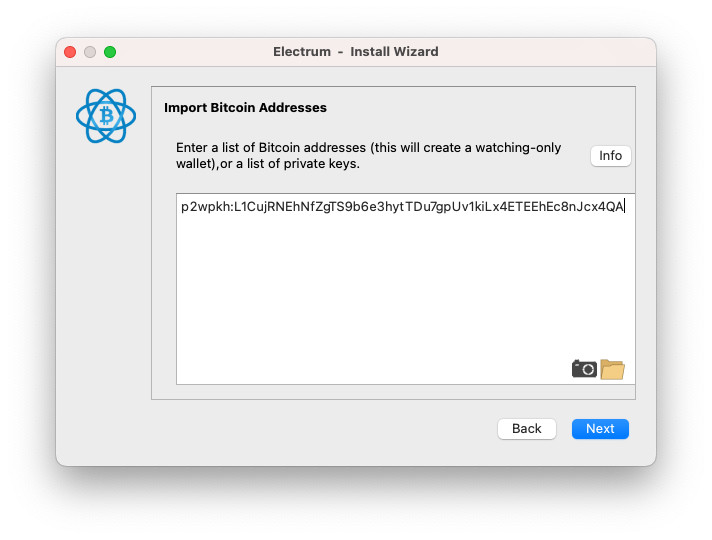
The tool exports two WIFs for import into the Electrum Bitcoin wallet: one for mainnet (bc1 address) and one for testnet (tb1 address). Choose the one that matches your vault's environment.
A WIF looks like: L1CujRNEhNfZgTS9b6e3hytTDu7gpUv1kiLx4ETEEhEc8nJcx4QA
Download the Electrum wallet, then follow these steps to import a WIF:
IMPORTANT: To recover a testnet key (address with the
tb1prefix), run Electrum with the--testnetflag from your Terminal. On a Mac:
open -n /Applications/Electrum.app --args --testnet
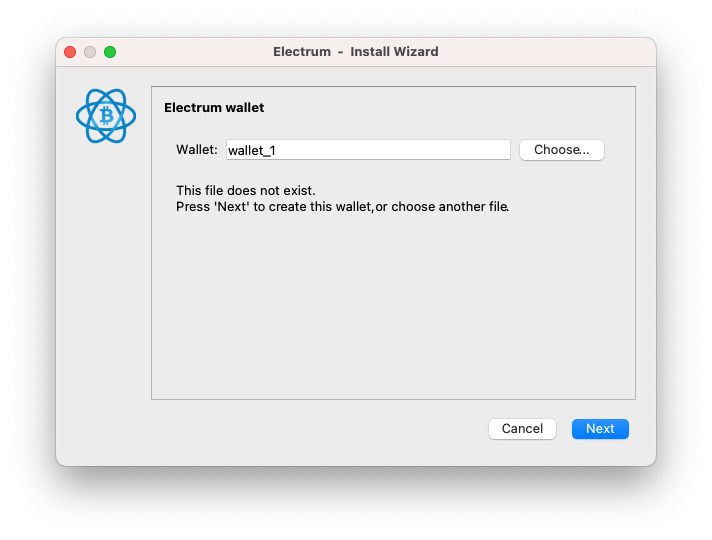
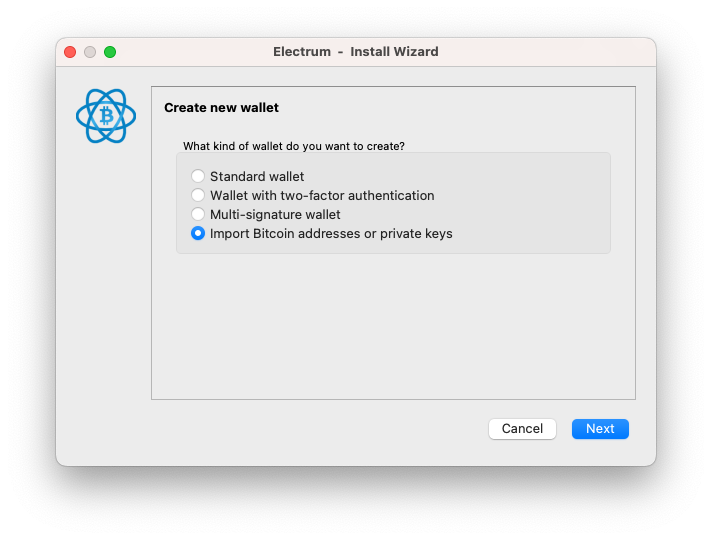
Prefix the WIF string with p2wpkh:, then paste it into the box.
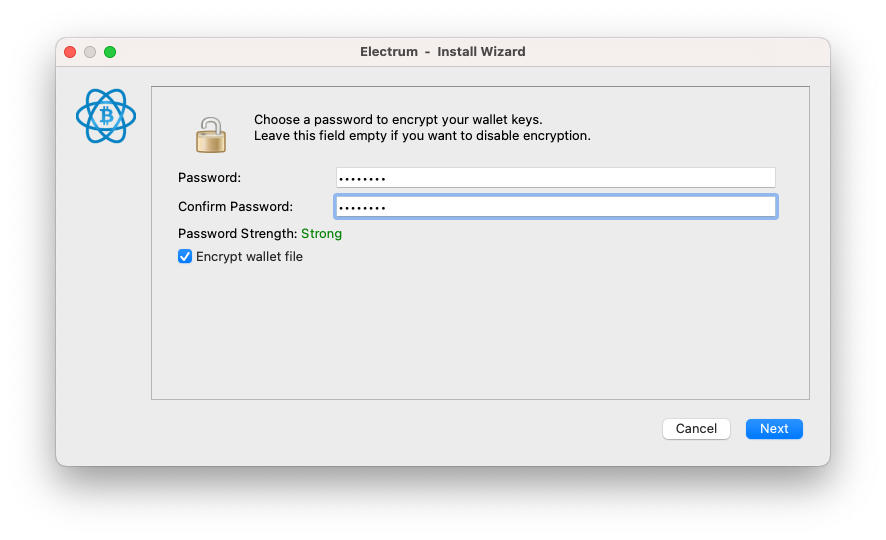
Create a password for the wallet.
After the chain syncs (this may take a while), Electrum shows your balances and the private key is recovered.
Tron recovery
Use TronLink to recover Tron and Tron assets. Follow this guide and import your vault's private key output by the tool.
Recovering other coins
For coins and tokens not listed here, try using the private key hex output from the tool in your wallet of choice. You can also check the tool's Readme for details on recovering other tokens like XRP and SOL.
Where to get support
See our help center for user guides and support processes.
Alternatively, contact our team through the web portal at support.iofinnet.com.
Updated about 2 months ago